LinkedIn Profile Picture Checker: 9 Things to Fix Before You Upload
A practical guide to checking crop, lighting, expression, background, and professional first impression before your LinkedIn photo goes live.

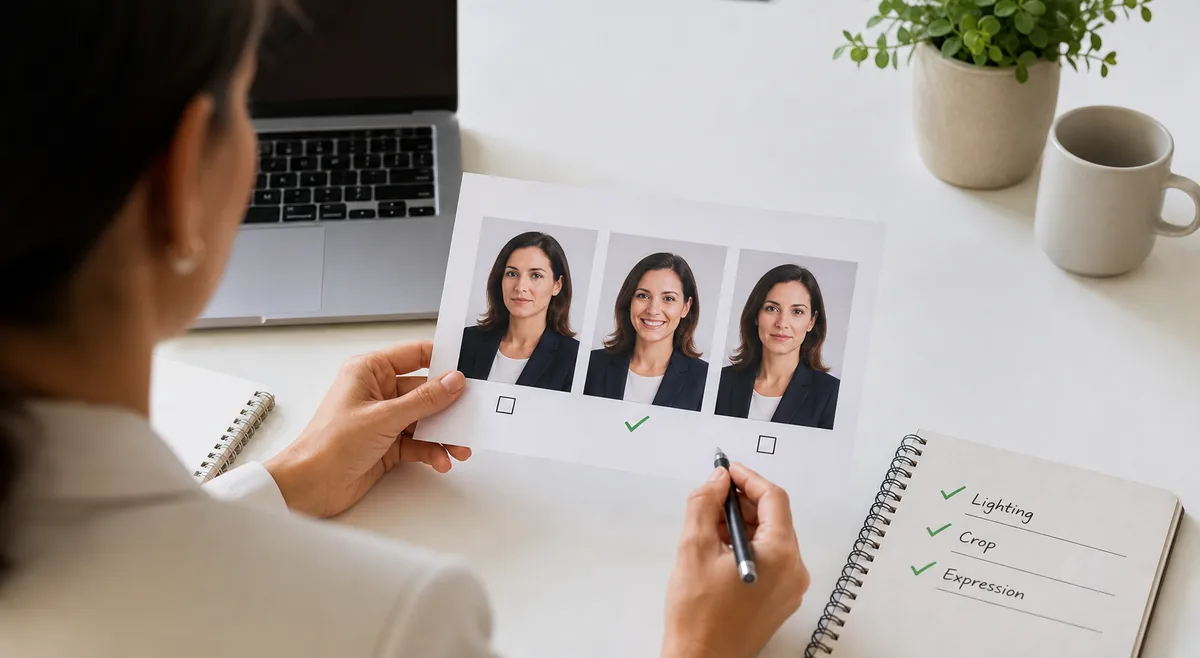
Table of Contents
Your LinkedIn profile picture is often the smallest image on the page, but it carries a large part of the first impression. It appears beside search results, connection requests, comments, messages, job applications, and company pages. If the photo is dark, cropped strangely, or too casual for your field, people may form an impression before reading a single line of your profile.
This LinkedIn profile picture checker guide gives you a practical way to review a photo before you upload it. It covers the nine checks that matter most: recognizability, crop, lighting, expression, background, clothing, image quality, consistency with your role, and privacy. You can use the checklist manually, or compare several candidates with an AI profile picture rater to see which image looks clearest and most professional.
The goal is not to make everyone look identical. A good professional headshot should still feel like you. The best photo is usually the one that is recent, easy to read at small size, appropriate for your industry, and warm enough to make a profile feel human.
What a LinkedIn Profile Picture Checker Should Review
A useful checker does more than ask whether the photo looks attractive. LinkedIn is a professional network, so the better question is whether the image supports trust, clarity, and role fit. A recruiter should be able to recognize your face in a tiny circle. A client should not wonder whether the image is old, filtered, or pulled from a party crop.
Use the checks below before testing small variations. If a photo fails on face visibility or image sharpness, fix that first; small edits to color or crop will not rescue an image that is hard to identify.
Recognizability
Your face should be visible, recent, and easy to identify even when the image is shown as a small circular thumbnail.
Crop and proportions
Aim for a head-and-shoulders crop with enough space around the face so the circle preview does not cut off hair, chin, or shoulders.
Lighting and sharpness
Soft front light and a sharp image usually beat dramatic shadows, backlighting, heavy blur, or compressed screenshots.
Professional context
The clothing, background, and expression should match the role you want to be trusted for, not just the photo that gets the most likes.
Fast answer
If the photo is clear at small size, recent, well lit, cropped around the face and shoulders, and appropriate for your field, it is usually a strong LinkedIn candidate.
LinkedIn Photo Scorecard: 9 Checks Before You Upload
Give each row a pass, maybe, or fix. A photo with seven or more passes is usually worth testing. A photo with weak recognizability, harsh lighting, or a confusing background should be retaken instead of heavily edited.
| Check | Strong LinkedIn signal | Fix if you see this |
|---|---|---|
| Face visibility | Eyes, face shape, and expression are easy to read | Face is too small, covered, turned away, or hidden by sunglasses |
| Crop | Head and shoulders fit cleanly in a square or circle preview | Top of head, chin, or shoulders are cut awkwardly |
| Lighting | Soft, even light with natural skin tone | Harsh overhead shadows, backlight, color cast, or low light |
| Sharpness | Image is crisp on desktop and mobile | Blur, screenshot compression, or noisy low-resolution export |
| Expression | Calm, approachable, and confident | Forced smile, tense face, distracted look, or party expression |
| Background | Simple professional setting that does not compete with the face | Messy room, cropped crowd, car seat, nightclub, or visual clutter |
| Clothing | Consistent with your target role or industry | Outfit feels unrelated to the work impression you want |
| Authenticity | Recent image that still looks like you | Old photo, heavy filter, excessive retouching, or AI-stylized face |
| Privacy | No sensitive documents, badges, addresses, or other people exposed | Background includes private or workplace-sensitive details |
How to Take a Better LinkedIn Headshot
You do not need a studio session for a stronger professional profile picture. Most people can get a better result with a phone camera, a clean background, and a few minutes of intentional setup. The key is to make the face readable and the context believable.
Shoot several versions instead of trying to perfect one pose. Small changes in eye level, smile, shoulder angle, and distance can make a large difference in how approachable and confident the image feels.
- Stand near a window or shaded outdoor area with soft light coming from the front or front side.
- Use the rear camera when possible and ask someone else to take the photo instead of stretching into a close selfie.
- Frame from mid-chest or shoulders up, leaving enough room for LinkedIn's circular crop.
- Choose a simple background: plain wall, office, library, neutral outdoor space, or softly blurred work setting.
- Wear clothing that fits your professional goal and contrasts gently with the background.
- Try three expressions: relaxed smile, slight smile, and calm neutral. Choose the one that feels both competent and approachable.
- Export a clean square image instead of uploading a screenshot from another app.
- Compare two to five candidates with a profile picture rater before choosing the final upload.
Mistakes That Make LinkedIn Profile Photos Weaker
Most weak LinkedIn photos fail because they add friction. The viewer has to work to identify the person, read the context, or decide whether the photo is current. The fixes are usually straightforward.
| Mistake | Why it hurts | Better choice |
|---|---|---|
| Using a cropped group photo | It can look informal and may leave another person in frame | Use a dedicated solo portrait |
| Uploading a screenshot | Compression makes the photo look soft | Upload the original image or a clean square export |
| Choosing a distant full-body shot | Your face disappears in the small circular preview | Use a head-and-shoulders crop |
| Overediting the face | It reduces trust and can look inconsistent in meetings | Use light exposure and crop adjustments only |
| Ignoring the background | Clutter can make the profile feel careless | Choose a plain wall, office, or neutral setting |
How to Use AI Feedback Without Overdoing It
AI photo feedback is useful when you compare several real options. It can point out lighting, clarity, crop, facial visibility, and overall profile-picture readiness. That is different from treating one score as a judgment of your career potential or personal value.
For LinkedIn, do not chase the highest attractiveness score if the image becomes too polished, too casual, or inconsistent with your profession. A slightly lower-scoring photo that looks trustworthy, current, and role-appropriate may perform better in a professional context.
- Upload only photos you have permission to use.
- Compare images with the same crop and similar lighting when possible.
- Read comments about clarity and expression before focusing on the numerical score.
- Avoid heavy beauty filters, face reshaping, or edits that make the photo misleading.
- Make the final decision based on professional fit, not the AI score alone.
For a broader explanation of AI photo feedback, read our guide to how AI rates your photo. If you are choosing photos for dating apps too, compare this with our dating profile picture guide.
Privacy and Upload Safety
A LinkedIn photo is public-facing, but that does not mean every draft image should be shared everywhere. Avoid uploading sensitive workplace screenshots, badges, documents, or location clues in the background. Crop out anything that does not belong in a professional public profile.
Before using any AI photo checker, read how the service handles uploads. Prefer tools that explain whether images are stored, used for training, or deleted after processing. Do not upload other people's photos without consent.
Privacy note
Before testing professional headshots, review the upload and storage policy of the tool you use. privacy policy
Bottom Line
A strong LinkedIn profile picture should be recognizable, current, sharp, well lit, and appropriate for the work you want to be associated with. The best image is not necessarily the most dramatic portrait; it is the photo that makes your profile easier to trust at a glance.
Use the scorecard first, then test a few candidates. Fix the obvious issues before uploading: bad crop, dim light, harsh shadows, busy background, outdated image, or overediting. Once those are handled, choose the photo that still feels like you and supports the professional impression you want to make.
Frequently Asked Questions
About the Author
Emily Chen
Emily Chen writes about practical AI photo tools, profile-picture selection, and how people can use image feedback without overreading a single score. Her guides focus on clear, useful decisions for dating, social, and professional profiles.
References and Useful Reading
Last updated: June 18, 2026